How to give us access to your Google Ads account
Already have a Google Ads account? Keep it. You stay the owner and keep all your history. There are two ways to give us access. Pick whichever is easier.
Don't have a Google Ads account yet? See what we need to create one for you →
Send us your Google Ads Customer ID
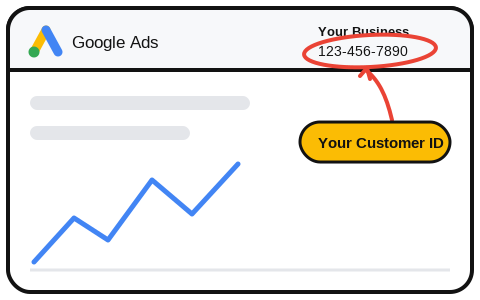
Your Customer ID (CID) is a 10 digit number in the top right corner of Google Ads, next to your account name. It looks like 123-456-7890.
- Sign in at ads.google.com.
- Look at the top right corner. Copy the 10 digit number under your account name.
- Send it to us on WhatsApp.
- We send a link request from our manager account. You'll get an email from Google. Click Accept (or approve it under Admin → Access and security → Managers).
Sharing your Customer ID is safe. It only lets us send you a request. Nothing changes until you approve it.
Add our emails as users
Add both of these with Admin access, so we can build campaigns, set up tracking and manage billing settings.
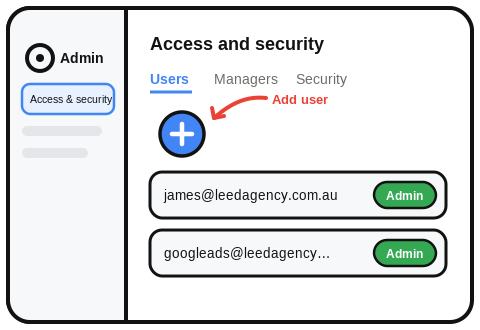
- In Google Ads, click Admin (the cog in the left menu), then Access and security.
- Open the Security tab. If Allowed email domains is switched on, add leedagency.com.au and save. If it's off, skip this step.
- Go back to the Users tab and click the blue + button.
- Paste james@leedagency.com.au, choose Admin, and click Send invitation.
- Click + again and do the same for googleads@leedagency.com.au.
- Send us a quick WhatsApp to say it's done. We'll accept the invites straight away.
Let us know on WhatsApp
Send your Customer ID, or a quick message to say you've added us. We'll take it from there, usually the same day. WhatsApp: 0401 783 106

You stay the owner of your Google Ads account and can remove our access at any time.